
How to set up Google Tag Manager
Set up a Google Tag Manager container to add any script to you your Gamesite.
Google Tag Manager allows you to add any script, such as Meta Pixel, Google Ads conversions, or analytics, to the site without redeploying any code.
-
Create a Google Tag Manager (GTM) container using this guide.
-
Import the template below to your container. It contains triggers for events and their properties, allowing you to connect the last mile by creating tags to send the data to your destinations. Feel free to reach out if you need assistance with this.
-
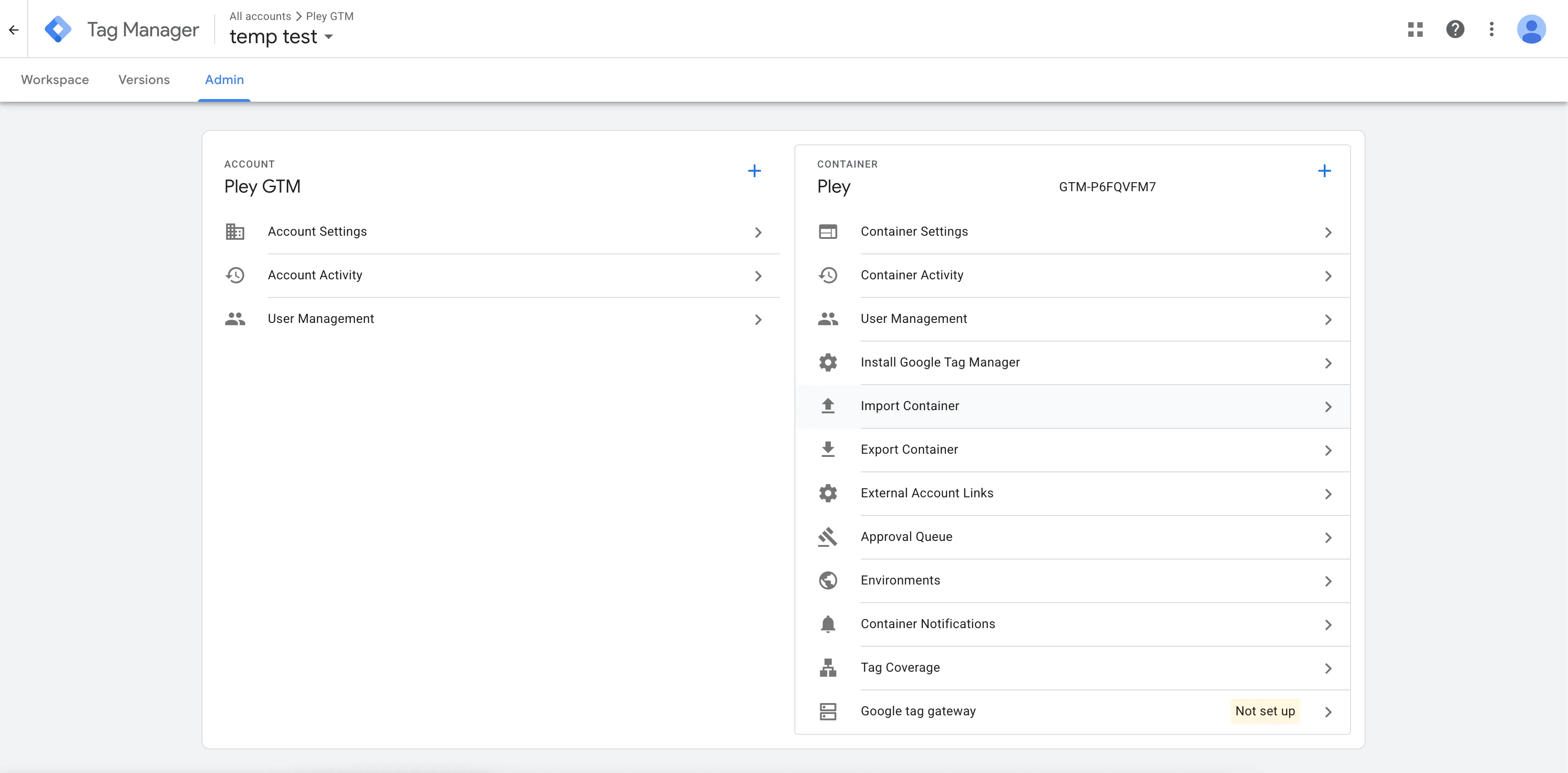
In your container, go to Admin and click Import container.
-
Upload this JSON file.
-
Select Existing workspace (Default).
-
Choose Overwrite as the import option.
-
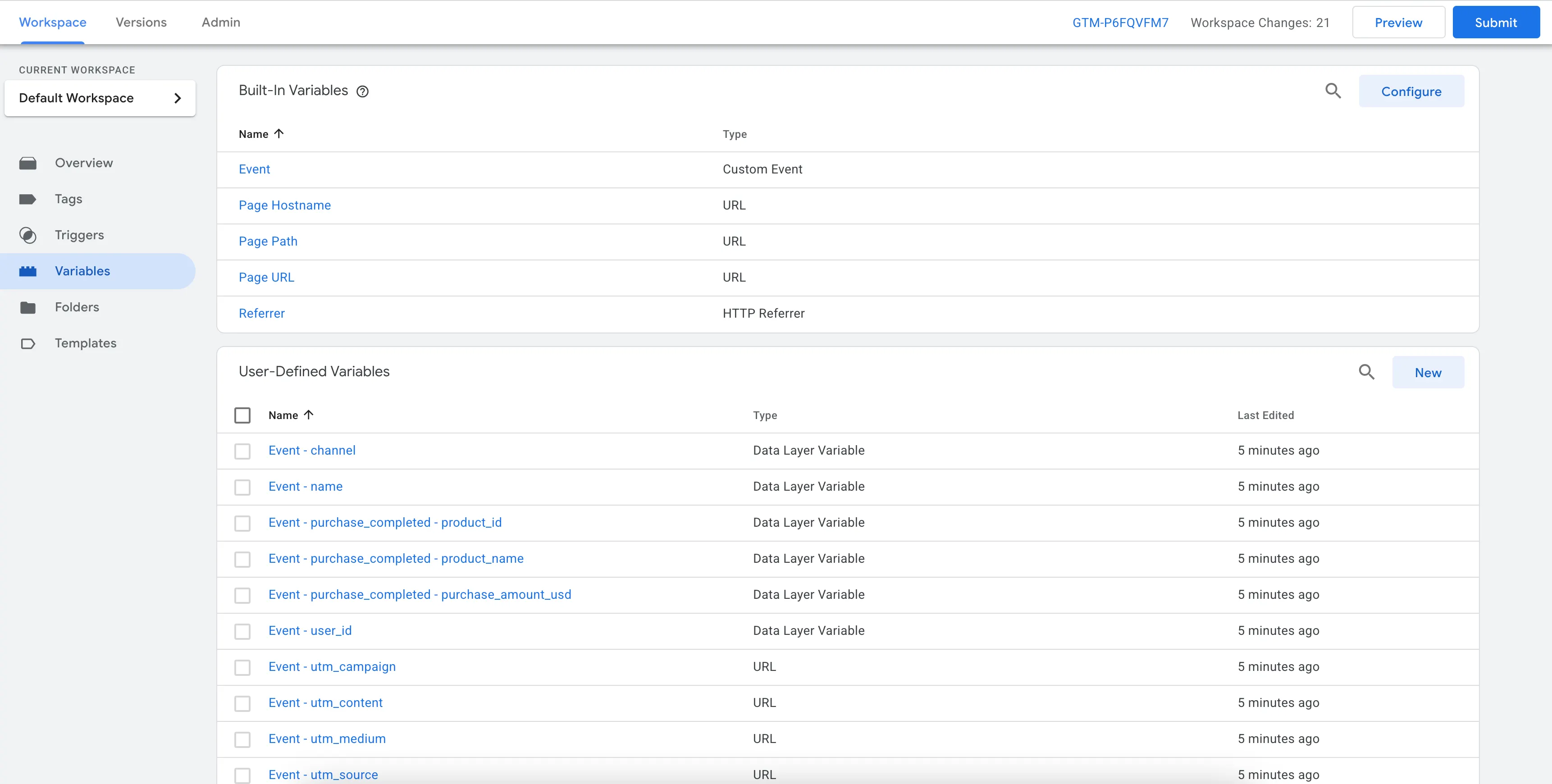
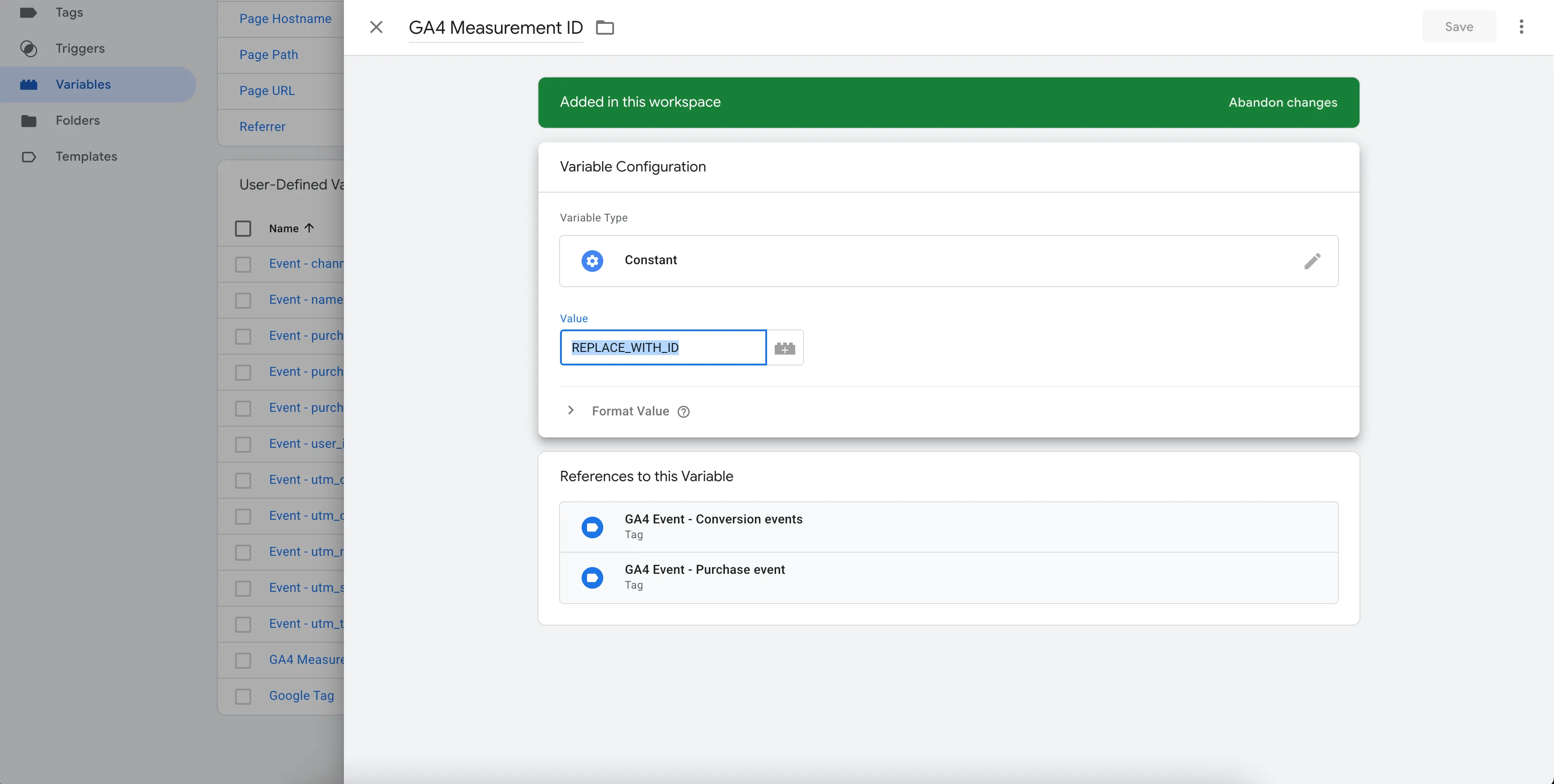
In your container, navigate to Variables and update the GA4 Measurement ID (if you’re using Google Analytics) as well as the Google Tag. These IDs are used in the tags to communicate with Google Analytics and Google Ads.
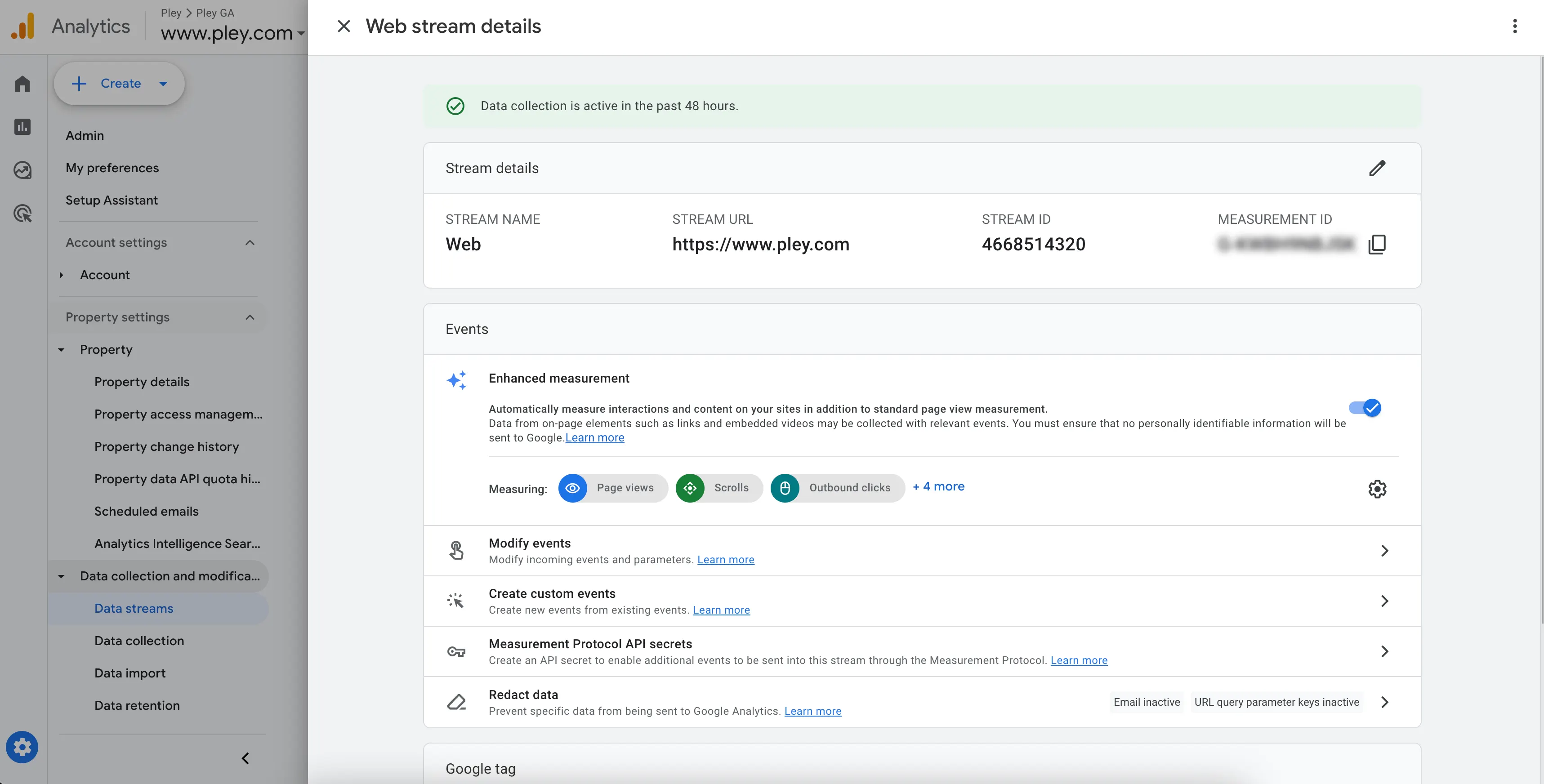
You’ll find the GA4 measurement ID in Admin → Data streams → Web in your Google Analytics account. It should look like G-XXXXXXXXXX and you should enter it for both GA4 Measurement ID and Google Tag variables.
-
You now have the trigger events and their parameters set up. Triggers activate Tags, which define the data destination or action. The template includes a few options you can review or delete if you’d like.
-
Add your Container ID to the Game manager's Gamesite Editor and Publish the Gamesite. If you run your own Headless Destination, you will have to set up Google Tag Manager yourself.
-
You can test the installation by clicking Preview, entering the Gamesite URL and verifying that the events are detected and Tags are triggered.
Updated 9 months ago