
How to Test Builds on CrazyGames
This article is a how-to for testing Pley web games on CrazyGames
To be able to test games on CrazyGames, your game must be enabled for CrazyGames. If it is not, reach out to Pley.
Please note that for normal development, Pley recommends simply testing your game in the Game Manager or locally in Unity.
- Use an environment with a CrazyGames test distribution channel, then release your build in that environment. Use Development for new test setups; existing Open testing and Closed testing environments remain supported. Contact Pley to configure the CrazyGames test channel.
- Visit https://developer.crazygames.com and log in or sign up.
- Create a new game or edit an existing non-released game.
- Inside the game, under "Files", set the
Game TypetoIframe. - Set the "Iframe Link" to the Smart Playable URL for your CrazyGames test distribution channel. The URL uses the channel's distribution ID; ask Pley to confirm the URL for this integration.
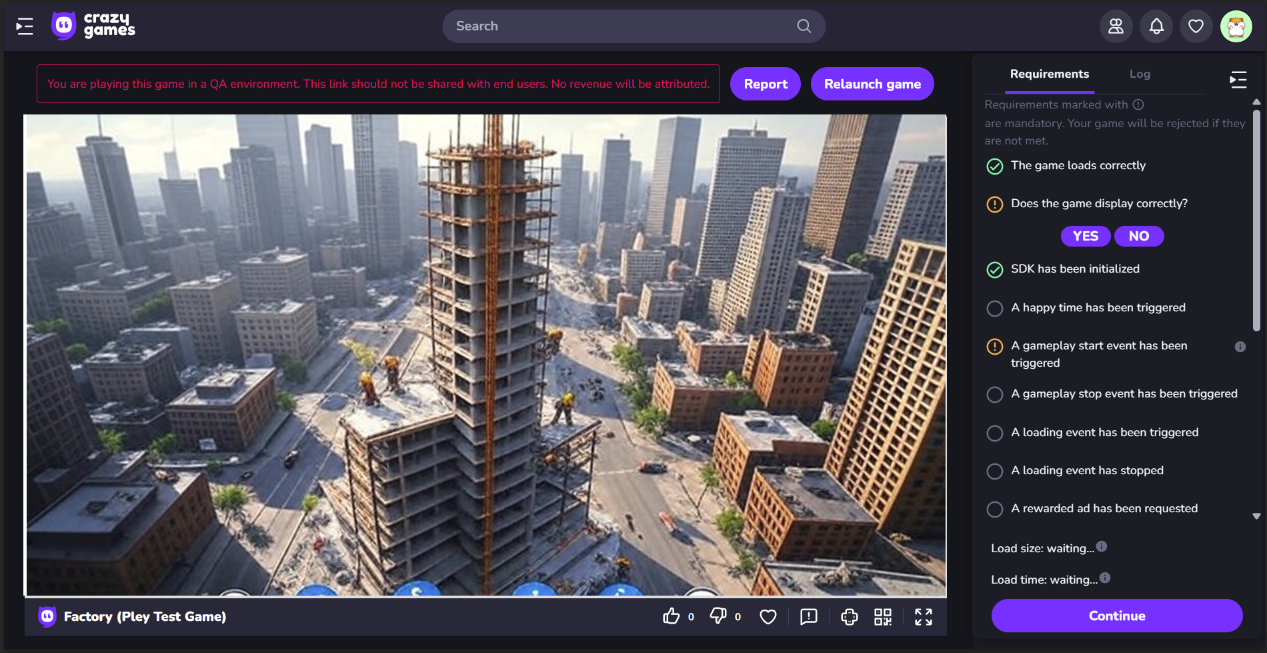
- Press "Go to QA" to test the game.
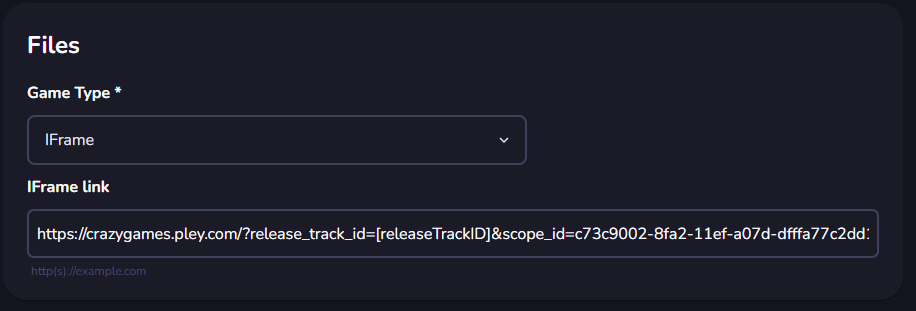
Use the distribution ID for the CrazyGames test channel configured in your chosen environment. Existing integrations can keep their configured URLs and IDs; do not substitute a distribution ID into an old release_track_id URL. CrazyGames uses a pre-assigned scope, so ask Pley to confirm the channel configuration rather than changing its scope manually.
See Environments and Testing in Game Manager and Distribution Channels & the Smart Playable URL.
Success!You can now test Pley web games on CrazyGames. Please note that the QA tool is limited in functionalty, and is always the same user.
Updated 17 days ago